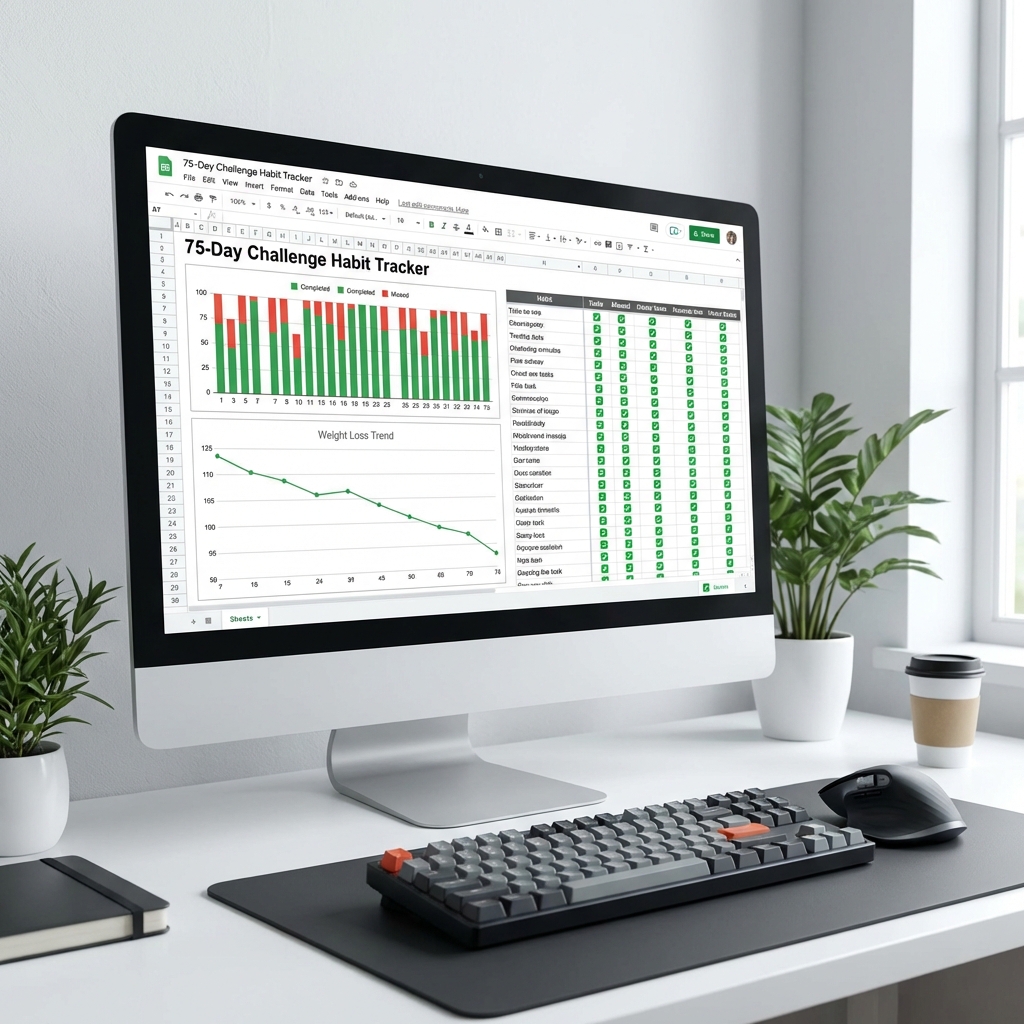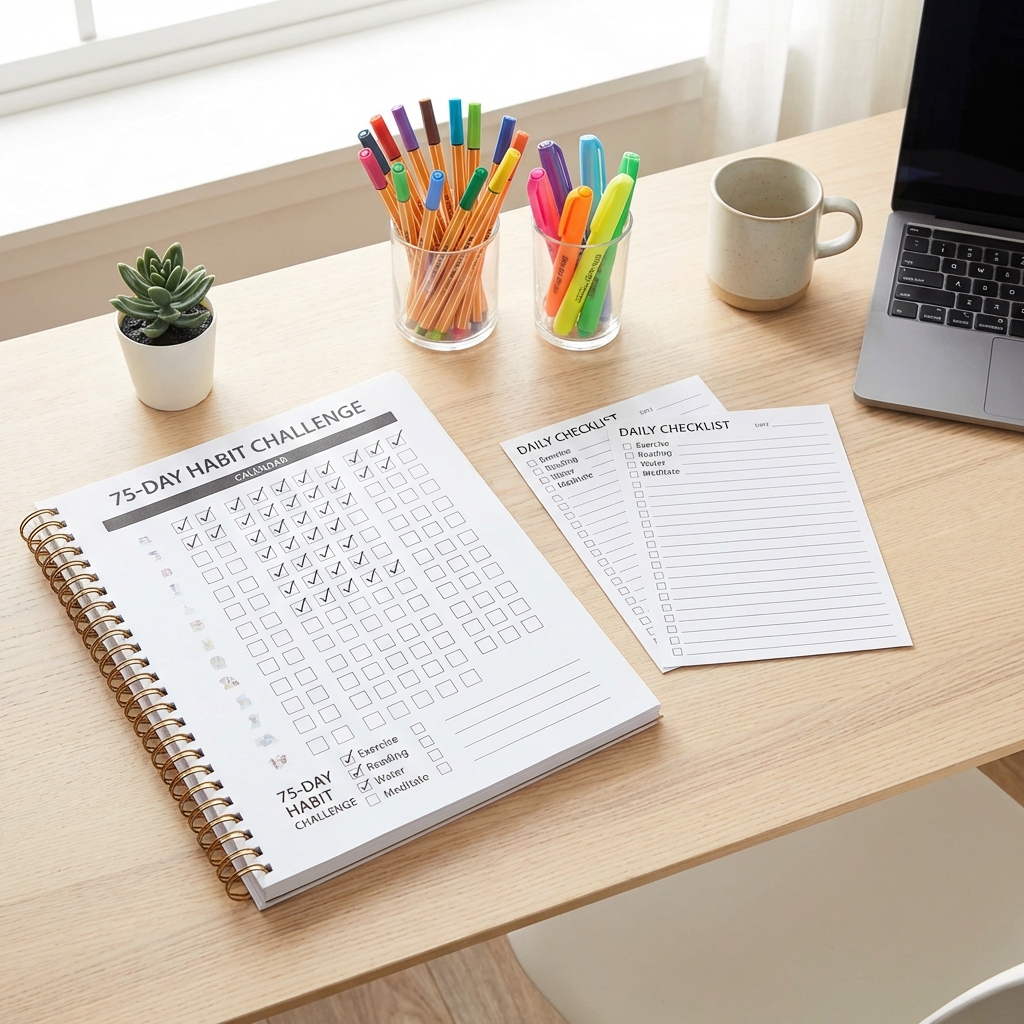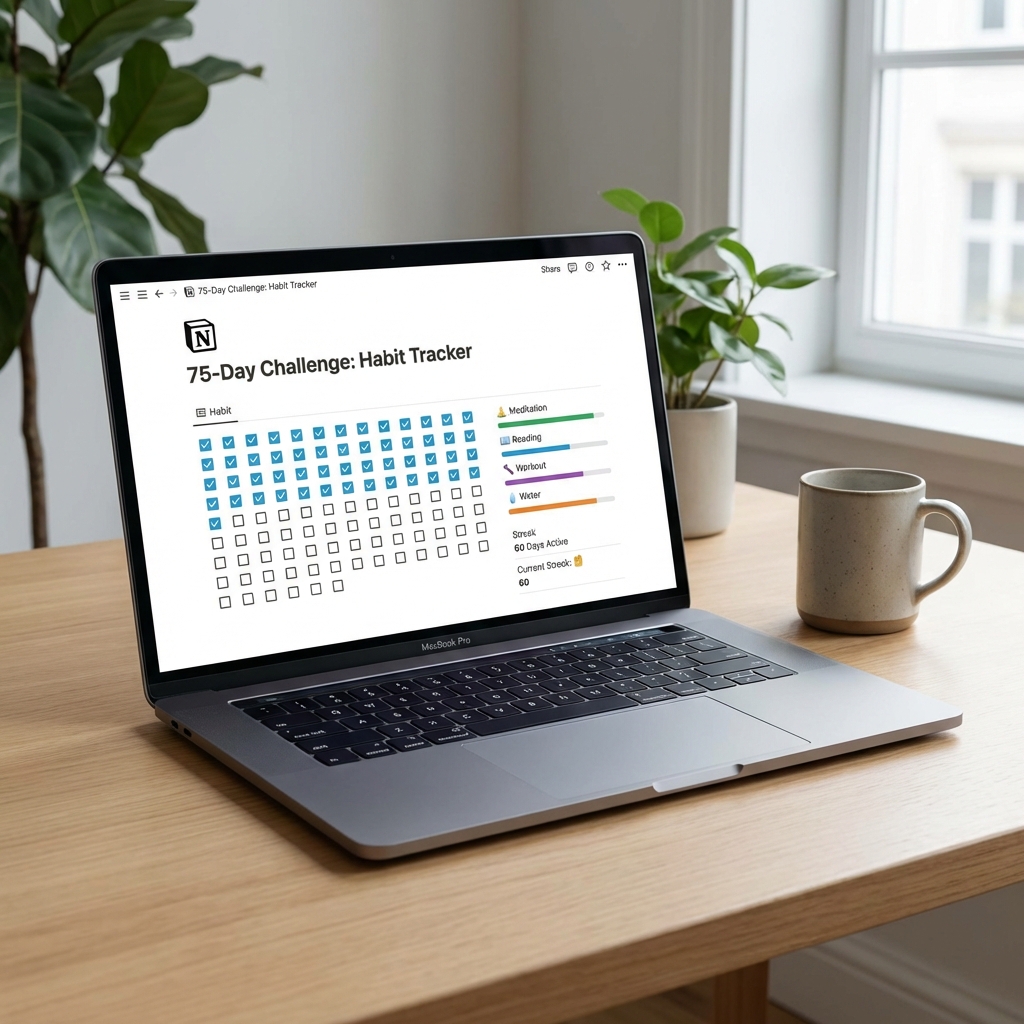
If your life already runs through Notion—your projects, notes, goals, and daily plans—why would your 75 Soft tracking live anywhere else? A well-designed Notion template brings your challenge into your existing workflow, with databases, progress views, and journaling all in one place.
Notion is particularly powerful for 75 Soft because it combines the flexibility of a blank canvas with the structure of a database. You can track daily habits, visualize your progress over time, journal your reflections, and access everything from your phone, tablet, or computer.
Why Notion Works for 75 Soft
Notion occupies a unique space between paper planners and dedicated apps. Here's why it's particularly well-suited for 75 Soft tracking:
All-in-One Platform
- Habit tracking: Daily checkbox database with streak counting
- Journaling: Rich text entries for reflection and notes
- Progress tracking: Charts, calendars, and milestone views
- Resource library: Save workout plans, recipes, and reading lists
Cross-Device Access
Unlike paper trackers, Notion syncs across all your devices. Update from your phone at the gym, journal from your laptop at night, review on your tablet in the morning. Your data follows you everywhere.
Customization Freedom
Unlike rigid habit apps, Notion lets you design exactly the tracking system you want. Add properties, change views, integrate with other areas of your life—the flexibility is unmatched.
Notion isn't just a tracking tool—it becomes your 75 Soft command center, housing everything from daily habits to meal plans to workout logs in one connected workspace.
Dashboard Overview
A good 75 Soft Notion template starts with a dashboard—your home base that shows everything at a glance. Here's what an effective dashboard includes:
Essential Dashboard Elements
- Progress counter: "Day X of 75" prominently displayed
- Today's checklist: The four habits with checkboxes
- Streak display: Current streak and longest streak
- Weekly calendar view: See completed vs. upcoming days
- Quick links: Jump to journal, measurements, resources
Optional Dashboard Widgets
- Current book: What you're reading with page count
- Motivational quote: Daily inspiration or your personal mantra
- This week's focus: One theme or intention for the week
- Upcoming challenges: Events or travels to plan around
Dashboard Design Philosophy
The best dashboard answers one question instantly: "What do I need to do today, and how am I doing overall?" Keep it focused. You can always dive deeper into individual databases, but your dashboard should provide clarity at a glance.
Daily Check-in System
The core of any 75 Soft template is the daily tracking database. Here's how to structure it for maximum effectiveness:
Database Properties
- Date: The date property (used for calendar views)
- Day Number: Formula calculating which day of 75 it is
- Exercise ✓: Checkbox for 45 minutes of exercise
- Diet ✓: Checkbox for eating well
- Reading ✓: Checkbox for 10 pages
- Water ✓: Checkbox for 3 liters
- All Complete: Formula that checks if all four are done
- Recovery Day: Toggle for marking active recovery
Optional Tracking Properties
- Workout Type: Select property (cardio, strength, yoga, etc.)
- Workout Duration: Number property for logging actual time
- Book Title: Text property for what you're reading
- Pages Read: Number property for exact page count
- Mood: Select property (great, good, okay, tough)
- Energy: Number rating 1-10
- Notes: Text property for quick daily observations
Useful Database Views
- Today view: Filtered to show only today's entry
- This week view: Gallery or table of current week
- Calendar view: Monthly calendar with colored completion status
- Incomplete view: Shows only days with missing habits (for catching up on logs)
Progress Visualization
One of Notion's strengths is visualizing progress over time. Here's how to make your journey visible:
Streak Tracking
Create rollup or formula properties that count consecutive completed days. Display this prominently on your dashboard. Options include:
- Current streak: Days in a row with all habits completed
- Longest streak: Your personal best run
- Total completed days: All days where you hit all four (not necessarily consecutive)
- Habit-specific streaks: Longest run for each individual habit
Progress Bars and Percentages
Use Notion's progress bar feature or formula-driven text bars to show:
- Overall completion: X/75 days or X% complete
- Habit success rates: Percentage for each of the four habits
- Weekly completion: How many days you fully completed this week
Calendar Heatmap
The calendar view with colored status indicators creates a visual heatmap of your journey. Configure it to show:
- Green: All four habits completed
- Yellow: Partial completion (3/4 habits)
- Red: Missed day or minimal completion
- Gray: Future days not yet reached
Visualization turns abstract progress into something tangible. When you can see your streak growing and your calendar filling with green, motivation becomes visual.
Journaling Integration
While not required by 75 Soft, journaling amplifies the challenge's benefits. Notion makes it easy to add reflection to your tracking:
Daily Journal Approach
Add a "Journal" text property to your daily tracking database. This keeps reflections connected to specific days. Prompts might include:
- How did I feel today?
- What was the hardest habit to complete?
- What am I learning about myself?
- What do I want to remember about today?
Separate Journal Database
For deeper reflections, create a separate journal database linked to your daily tracking. This allows for longer entries, photos, and more structured reflection templates.
Weekly Review Template
Create a template for weekly reviews with these sections:
- Wins: What went well this week?
- Challenges: What was difficult?
- Lessons: What did you learn?
- Adjustments: What will you change next week?
- Gratitude: What are you thankful for?
Journaling Sweet Spot
Aim for 2-3 minutes of daily journaling and 10-15 minutes for weekly reviews. Any more and it becomes a chore; any less and you miss the reflection benefits. Find the balance that feels sustainable for you.
How to Duplicate and Customize
Most Notion templates are available as duplicatable pages. Here's how to get started:
Finding Templates
- Notion Template Gallery: Search for "75 Soft" or "habit tracker"
- Gumroad/Etsy: Creators sell designed templates ($5-15 typical)
- Reddit: r/Notion and r/75soft members share free templates
- YouTube: Many Notion creators share free templates in video descriptions
Duplicating to Your Workspace
- Open the template link
- Click "Duplicate" in the top right corner
- Choose which workspace to add it to
- The template appears in your sidebar
Customization Steps
- Set your start date: Update the challenge start date property
- Adjust properties: Remove or add tracking properties to match your needs
- Create your views: Configure calendar, table, and gallery views
- Personalize appearance: Add icons, covers, and adjust colors
- Pre-populate days: Some templates require you to create entries for all 75 days upfront
Tips for Notion Beginners
New to Notion? Here's what you need to know to get started with a 75 Soft template:
Basic Concepts
- Pages: The basic building blocks—like documents that can contain anything
- Databases: Structured collections with properties (like spreadsheets but more visual)
- Properties: Fields you add to database entries (text, checkboxes, dates, etc.)
- Views: Different ways to see the same database (table, calendar, gallery, board)
- Templates: Reusable entry formats within databases
Getting Started Quickly
- Create a free Notion account at notion.so
- Download the app for your phone, tablet, and computer
- Find and duplicate a 75 Soft template (simpler is better for beginners)
- Explore the template without changing much—just use it first
- Customize only after you've used it for a week and know what you want
Common Beginner Mistakes
- Over-customizing too early: Start simple, add complexity later
- Choosing overly complex templates: A beautiful template is useless if you don't understand it
- Not using the mobile app: Quick check-ins from your phone are essential
- Perfectionism: Your setup doesn't need to be perfect—it needs to work
Start Simple
If you're new to Notion, resist the urge to build an elaborate system. Start with the most minimal template you can find—just the four habits and a date. You can always add more features after you've established the habit of using Notion daily.
Building Your Own Template
Want to create your own from scratch? Here's a minimal approach:
Minimal Viable Tracker
- Create a new database called "75 Soft Daily"
- Add properties: Date, Exercise (checkbox), Diet (checkbox), Reading (checkbox), Water (checkbox)
- Create a calendar view
- Add a "Today" view filtered to the current date
- Create a dashboard page that embeds these views
That's it. You can track all 75 days with just this setup. Everything else is optional enhancement.